---
title: Getting started with Templates in Nexus AI™ Scribe
description: Get started with Templates in the Manage Note Template screen in Nexus AI™ Scribe
---
[Skip to content](https://info.wellstar.health/knowledge-base/getting-started-with-templates-in-nexus-ai-scribe#main-content)
English - Canada
Show submenu for translations
[](https://nexusai.wellstar.health/)
- [Home](https://nexusai.wellstar.health/)
- [Support](https://nexusai.wellstar.health/support/)
- [Resources](https://wellstar.health/resources/)
Open main navigation
Close main navigation
- [Home](https://nexusai.wellstar.health/)
- [Support](https://nexusai.wellstar.health/support/)
- [Resources](https://wellstar.health/resources/)
- English - Canada
Show submenu for translations
- [Book a 1:1 Support Session](https://calendly.com/nexus-ai-support-team)
[Book a 1:1 Support Session](https://calendly.com/nexus-ai-support-team)
How can we help you?
- There are no suggestions because the search field is empty.
1. [Nexus AI™ Knowledge Base](https://info.wellstar.health/knowledge-base?hsLang=en-ca)
2. [Getting started](https://info.wellstar.health/knowledge-base/getting-started?hsLang=en-ca)
# Getting started with Templates in Nexus AI™ Scribe
The **Manage Note Template** screen in Nexus AI™ Scribe allows you to view, manage, and create note templates that can be used during encounters and dictation workflows.
Templates help standardize notetaking and reduce the time required to document clinical encounters.
To access this screen, select **Manage Note Template** from the left navigation panel.
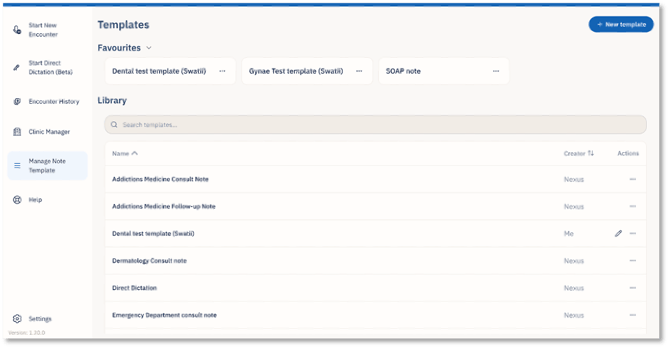
**Templates Screen**
The Templates screen displays a list of note templates available to you. Some templates are system-generated and are pre-populated in the library. These templates are created and maintained by the Nexus system.
Users can also create their own custom templates, which will be added to the template list and can be used for future documentation.
Each template appears in a row with its name, creator, and available actions. Users can use this section to browse existing templates or search for a specific template using the search bar.
**Favourites Section**
At the top of the Templates screen, you will see a **Favourites** section.
This section displays templates that have been marked as favourites. Users can mark frequently used templates as favourites, so they appear at the top of the screen. This makes it easier to quickly access commonly used templates without searching through the full template library.
**Creating a New Template**
You can create a new custom template by selecting the **+ New template** button in the top-right corner of the screen.
For step-by-step instructions, refer to the article on **How to Create a New Template**.
**Template Actions**
Each template row includes an actions menu. Depending on the template type, you can edit a template, mark it as a favourite, or manage other template options.
For more details, refer to the related articles on:
- [**How to Create a New Template**](https://info.wellstar.health/knowledge-base/how-to-create-a-new-template-in-nexus-ai-scribe?hsLang=en-ca)
- [**How to Mark a Template as a Favourite**](https://info.wellstar.health/knowledge-base/how-to-mark-a-nexus-ai-scribe-template-as-favourite-?hsLang=en-ca)
- [**How to Manage Template Actions**](https://info.wellstar.health/knowledge-base/managing-template-actions-in-nexus-ai-scribe?hsLang=en-ca)
- [Getting started](https://info.wellstar.health/knowledge-base/getting-started?hsLang=en-ca)
- [Settings](https://info.wellstar.health/knowledge-base/settings?hsLang=en-ca)
- [How To](https://info.wellstar.health/knowledge-base/how-to?hsLang=en-ca)
- [Troubleshooting](https://info.wellstar.health/knowledge-base/troubleshooting?hsLang=en-ca)
- [Home](https://nexusai.wellstar.health/)
- [Support](https://nexusai.wellstar.health/support/)
- [Resources](https://wellstar.health/resources/)
[](https://nexusai.wellstar.health)
[mailto:help@wellstar.health](mailto:help@wellstar.health)
Copyright © 2026, WELLSTAR Technologies