---
title: How to conduct an encounter in Nexus AI™ Scribe
description: Detailed description of how to conduct an encounter in Nexus AI™ Scribe
---
[Skip to content](https://info.wellstar.health/knowledge-base/how-to-conduct-an-encounter-in-nexus-ai-scribe#main-content)
English - Canada
Show submenu for translations
[](https://nexusai.wellstar.health/)
- [Home](https://nexusai.wellstar.health/)
- [Support](https://nexusai.wellstar.health/support/)
- [Resources](https://wellstar.health/resources/)
Open main navigation
Close main navigation
- [Home](https://nexusai.wellstar.health/)
- [Support](https://nexusai.wellstar.health/support/)
- [Resources](https://wellstar.health/resources/)
- English - Canada
Show submenu for translations
- [Book a 1:1 Support Session](https://calendly.com/nexus-ai-support-team)
[Book a 1:1 Support Session](https://calendly.com/nexus-ai-support-team)
How can we help you?
- There are no suggestions because the search field is empty.
1. [Nexus AI™ Knowledge Base](https://info.wellstar.health/knowledge-base?hsLang=en-ca)
2. [How To](https://info.wellstar.health/knowledge-base/how-to?hsLang=en-ca)
# How to conduct an encounter in Nexus AI™ Scribe
Click **Start New Encounter** from the left-hand navigation panel.
1. Choose the appropriate documentation template from the **Select template** dropdown.
2. Add any relevant patient context or pre-encounter notes in the notes field, if needed.
3. Confirm that the transcription language is correct.
4. Click the **microphone** button to begin capturing the encounter.
5. Once the encounter starts, the screen will update to show that recording is in progress:
6. Conduct the patient consultation as usual.
7. During the encounter, providers can use the live transcript as a visual confirmation that the conversation is being recorded and transcribed.
8. Once the encounter is complete, click the **Stop** button.
9. After the recording is stopped, Nexus AI™ Scribe will process the encounter and generate the clinical note based on the captured conversation, selected template, and any notes entered on the screen.
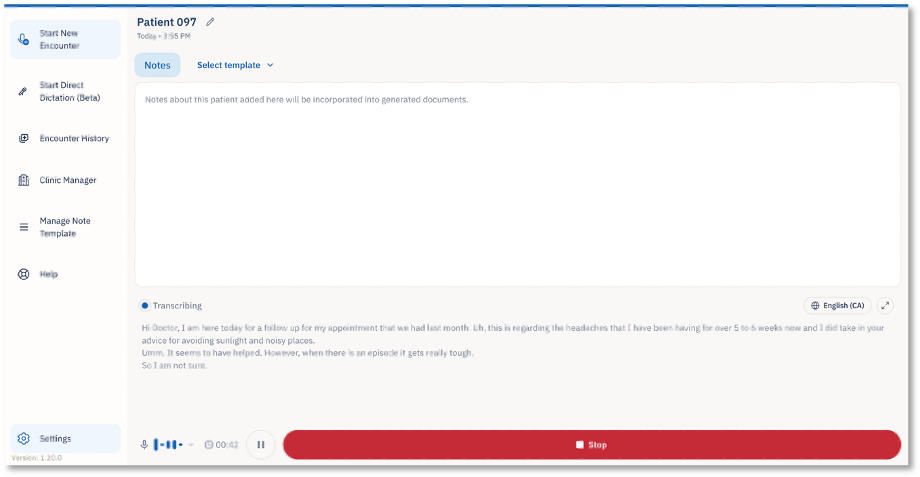
- The microphone button changes to a **Stop** button.
- A **Pause** button appears, allowing the provider to pause the recording if needed.
- A moving audio wave appears on the lower left side of the screen, indicating that the conversation is being captured.
- The live transcript begins appearing on the screen as the doctor and patient speak. This may take approximately **10–15 seconds** to start displaying.
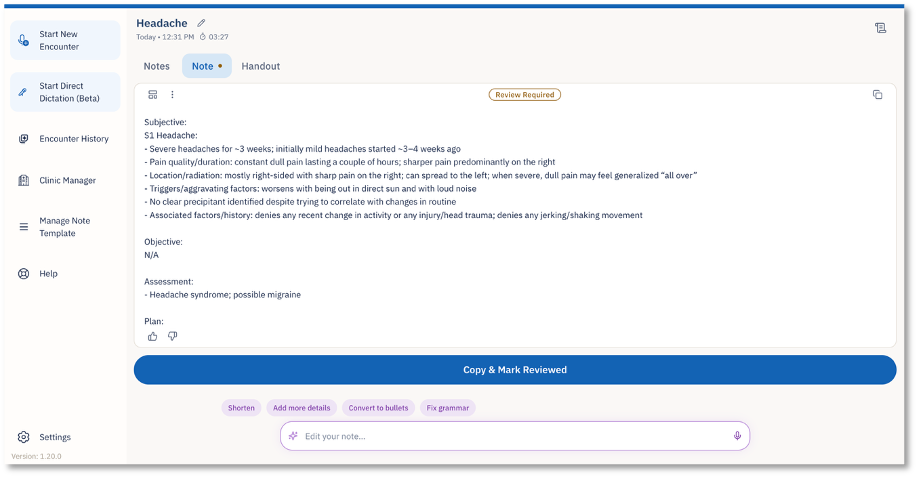
- Review the generated note for accuracy and completeness.
- Make any required edits before finalizing or using the note in the patient record. **You may use the AI prompts at the bottom of the note to shorten the note, correct grammar etc.**
- [Getting started](https://info.wellstar.health/knowledge-base/getting-started?hsLang=en-ca)
- [Settings](https://info.wellstar.health/knowledge-base/settings?hsLang=en-ca)
- [How To](https://info.wellstar.health/knowledge-base/how-to?hsLang=en-ca)
- [Troubleshooting](https://info.wellstar.health/knowledge-base/troubleshooting?hsLang=en-ca)
- [Home](https://nexusai.wellstar.health/)
- [Support](https://nexusai.wellstar.health/support/)
- [Resources](https://wellstar.health/resources/)
[](https://nexusai.wellstar.health)
[mailto:help@wellstar.health](mailto:help@wellstar.health)
Copyright © 2026, WELLSTAR Technologies