
Nexus AI™ Scribe allows you to create custom note templates based on your documentation needs. You can either start from a commonly used template format or create a template from scratch.
Custom templates can help you standardize documentation, save time, and create notes in a format that matches your preferred workflow.
To create a new template:
- Select Manage Note Template from the left navigation panel.
- On the Templates screen, click + New template in the top-right corner.
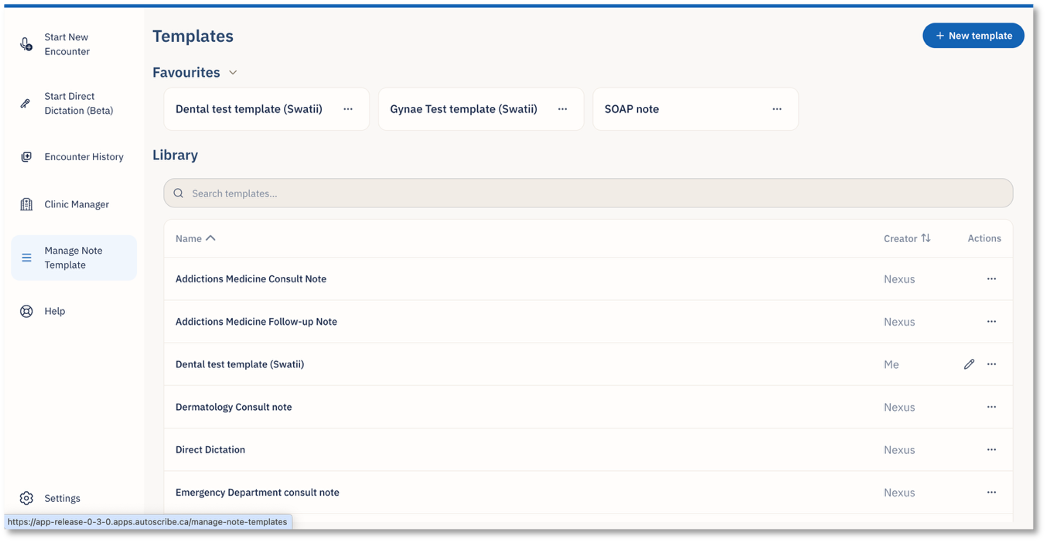
This opens the Create a new template screen.
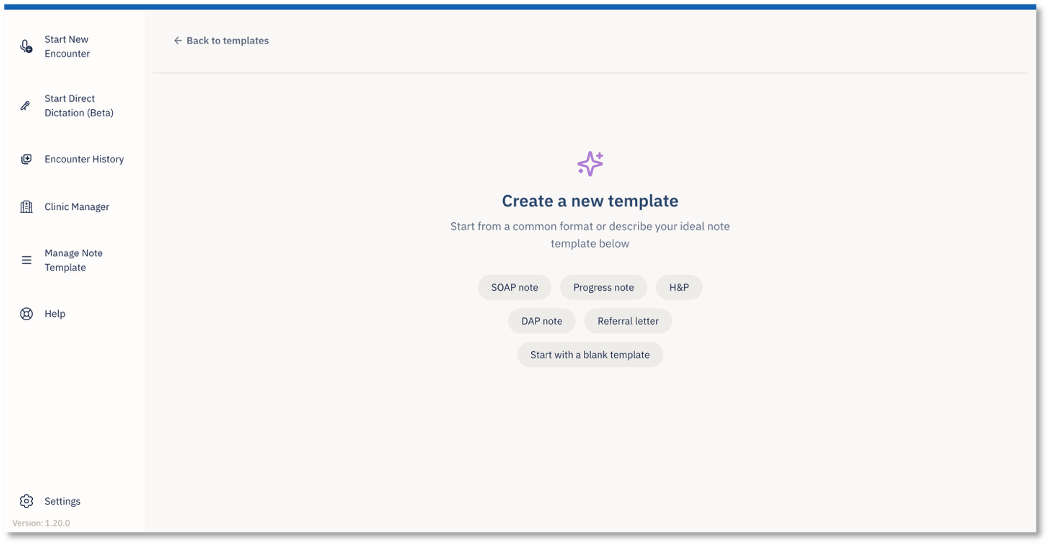
Choose How to Create the Template
On the Create a new template screen, you can choose from common template formats or start with a blank template.
Create a Template from a Common Format
To create a template using a common format:
- Click + New template from the Templates screen.
- Select one of the available formats, such as Progress note.
- The selected template opens with a pre-populated structure.
- Rename the template by editing the template title at the top of the screen.
- Review the template content and make any required changes.
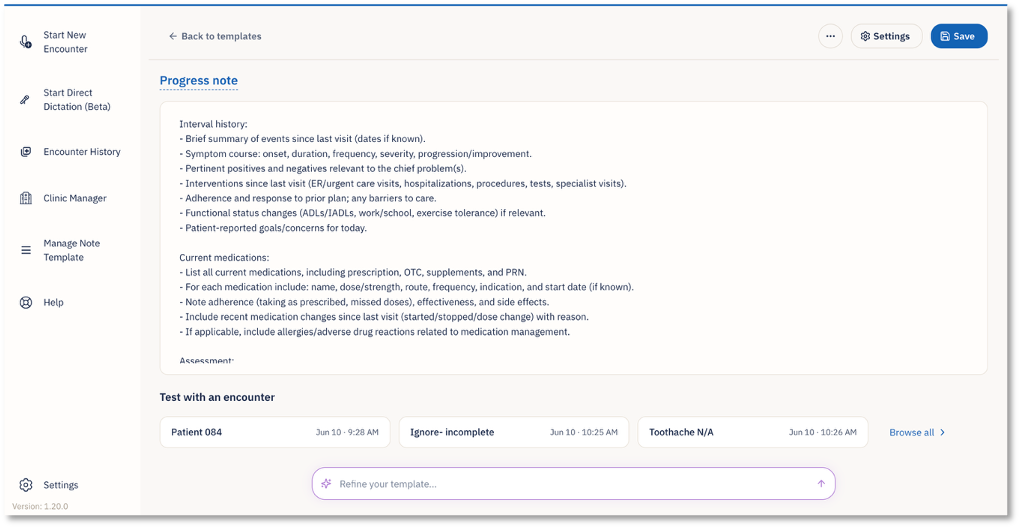
You can add, remove, or update sections of the template based on your documentation needs.
Test the Template with an Existing Encounter
You can test how the template will generate a note by applying it to an existing encounter.
Saved encounters appear at the bottom of the template screen under Test with an encounter. To test the template:
- Scroll to the Test with an encounter section.
- Select one of the available encounters.
- Nexus AI Scribe will use the selected encounter to show how the note may appear using the template structure.
This allows you to confirm whether the template produces the desired note format before saving it.
Save the Template
Once you are satisfied with the template name, structure, and test output, click Save in the top-right corner.
After saving, the new template will be added to the template library and can be used for future encounters.
Create a Blank Template
You can also create a template from scratch.
To create a blank template:
- Click + New template from the Templates screen.
- Select Start with a blank template.
- A blank template screen opens.
- Rename the template by editing the template title.
- Write or paste the desired note structure into the template area.
- Add all required sections, prompts, or instructions based on your documentation needs.
- Click Save in the top-right corner once complete.
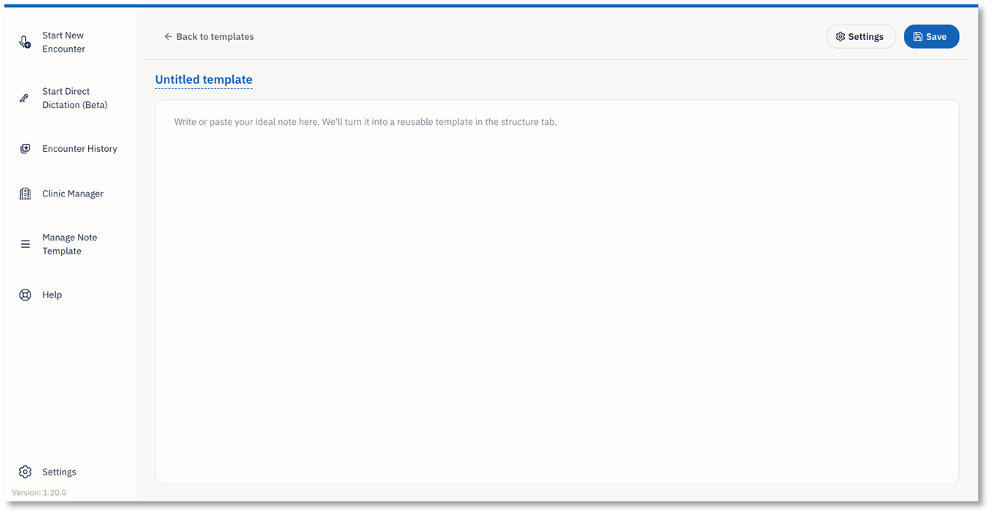
This option is useful when you have a very specific note format or want full control over the template structure.