
After a consult is completed in Nexus AI™ Scribe, a clinical note is generated for you to review. Before copying the note into the EMR or marking it as reviewed, you can make changes to the generated note directly by using the available AI prompt options or by entering your own custom instructions.
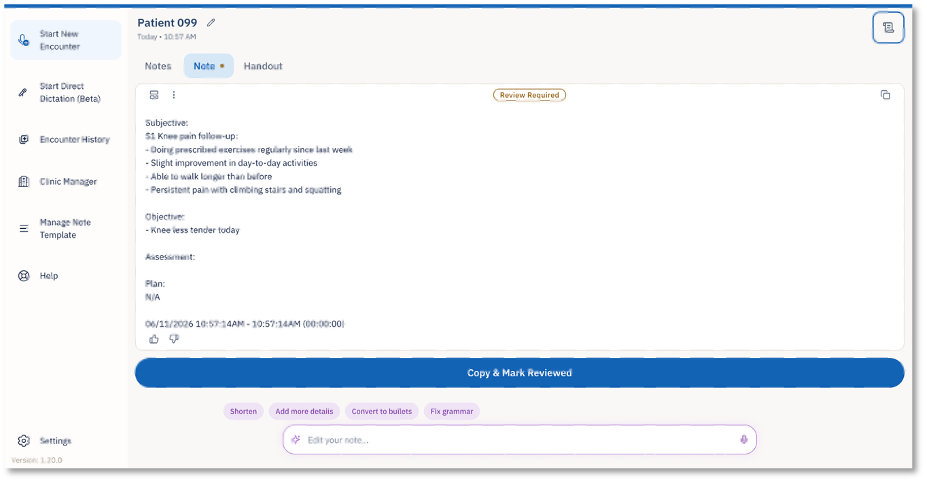
Once the note is generated, it appears on the encounter screen under the Note tab.
The note will display a Review Required status until the user reviews and finalizes it.
Use AI Prompts to Edit the Note
At the bottom of the note screen, you will see AI prompt options that can be used to quickly edit the generated note.
Available prompt options may include:
- Shorten
- Add more details
- Convert to bullets
- Fix grammar
Users can select one of these prompts to apply the requested change to the note.
Enter Custom Instructions
If the available prompts do not match what you need, they can use the instruction bar below the prompts.
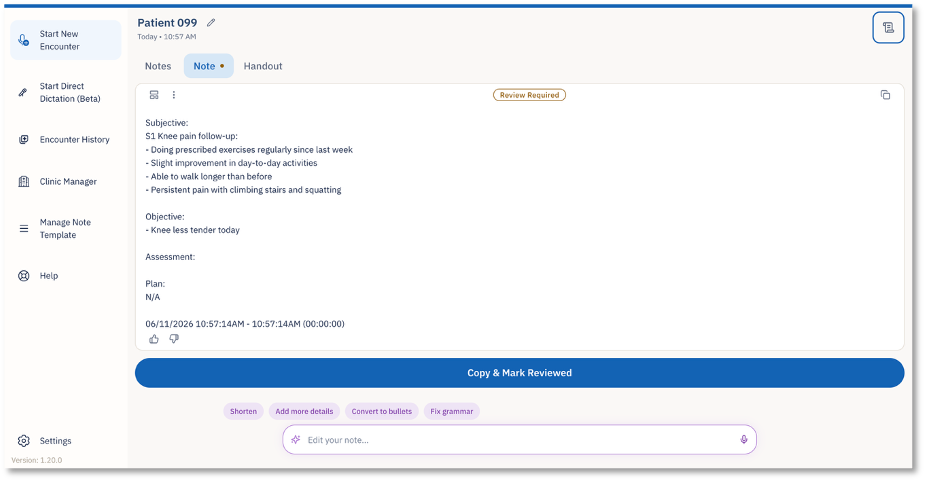
In this bar, you can type your own instruction for how you want the note to be edited.
Copy and Mark Reviewed
Once you are satisfied with the note, you can select Copy & Mark Reviewed.
This action copies the finalized note and marks it as reviewed in Nexus AI Scribe.