
You are in charge of which documents a visit includes. Add the Referral Letter and Patient Handout when you need them, so your screen stays focused on the note.
How to add a referral letter
- Open the visit. Go to the visit you would like to write a referral for.
- Select the + button. You will find the + button beside the note tab. It lists the documents you can add.
- Choose Referral Letter. A Referral Letter tab is added to the visit, with a letter drafted from the visit.
- Review the draft. Read through the whole letter carefully. If the letter is long, scroll within the letter panel to see all of it.
- Edit and save. Make any changes you need, then save the letter. It is kept with the note for this visit.
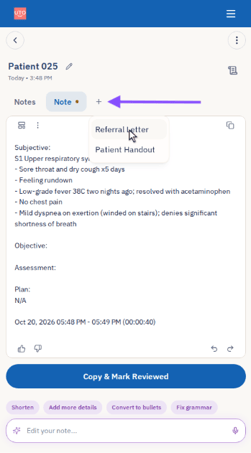
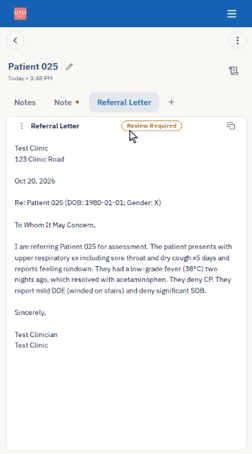
Need a handout too? Select + again and choose Patient Handout.
Good to know- One of each per visit. You can add one Referral Letter and one Patient Handout to each visit. Once you have added both, the + button goes away.
- Always check before you send. The letter is a draft. Make sure the details are correct and complete before it goes to another provider.
- A new name for handouts. What used to be called “Handout” is now Patient Handout, in both English and French.
- Using OSCAR? The Referral Letter tab is hidden while OSCAR's own Referral tab is showing.
Questions? Reach out to the Nexus AI support team and we will be happy to help.