---
title: How to Refresh Your Notes After Recording
description: Sometimes after you finish a recording, you might need to update or refresh your notes. This article shows you how.
---
[Skip to content](https://info.wellstar.health/knowledge-base/how-to-refresh-your-notes-after-recording#main-content)
English - Canada
Show submenu for translations
[](https://nexusai.wellstar.health/)
- [Home](https://nexusai.wellstar.health/)
- [Support](https://nexusai.wellstar.health/support/)
- [Resources](https://wellstar.health/resources/)
Open main navigation
Close main navigation
- [Home](https://nexusai.wellstar.health/)
- [Support](https://nexusai.wellstar.health/support/)
- [Resources](https://wellstar.health/resources/)
- English - Canada
Show submenu for translations
- [Book a 1:1 Support Session](https://calendly.com/nexus-ai-support-team)
[Book a 1:1 Support Session](https://calendly.com/nexus-ai-support-team)
How can we help you?
- There are no suggestions because the search field is empty.
1. [Nexus AI™ Knowledge Base](https://info.wellstar.health/knowledge-base?hsLang=en-ca)
2. [How To](https://info.wellstar.health/knowledge-base/how-to?hsLang=en-ca)
# How to Refresh Your Notes After Recording
Sometimes after you finish a recording, you might need to update or refresh your notes. Here are some common scenarios of when you might need to refresh your notes:
- **Change your note format:** If you want to use a different note template for the same recording.
- **Make changes to your note:** Add more information or edit what's already there.
- **Note isn't showing up:** If your note seems to be missing or not displaying properly.
### How to Refresh Your Notes
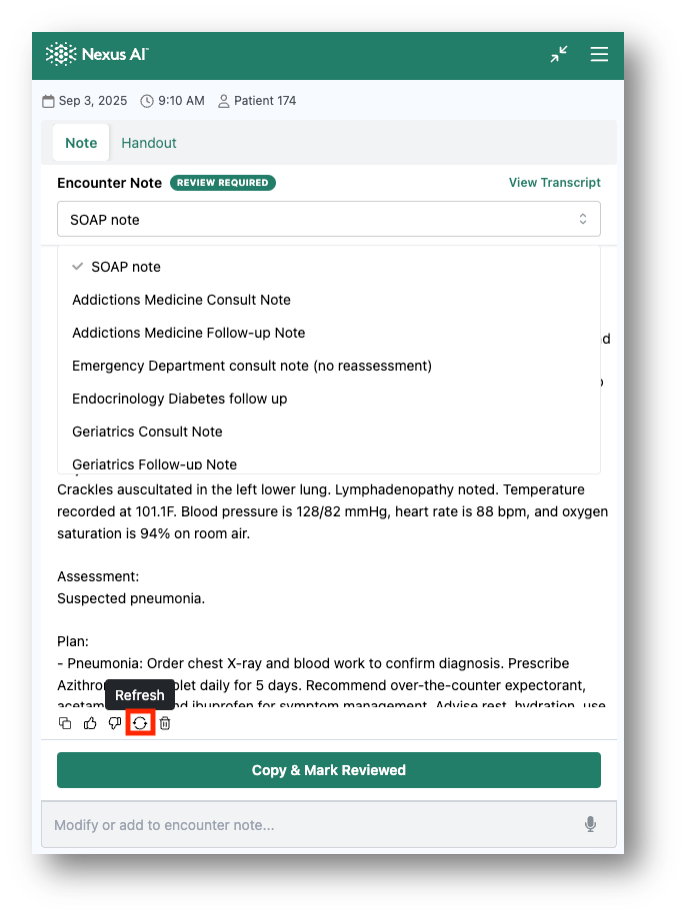
1. **Find the bottom of your note** - Scroll down to the very end of your current note.
2. **Look for the refresh button** - You'll see a circular arrow icon (this is the "refresh" or "cycle" button). It's located between the thumbs-down and trash-can icon.
3. **Click the refresh button** - Click on the circular arrow icon to regenerate your note.
That's it! Your note will be refreshed with any changes you've made or using your new template settings.
### Need Help?
📧 Email: [help@wellstar.health](mailto:%20help@wellstar.health)
📅 Book support: [https://calendly.com/nexus-ai-support-team](https://calendly.com/nexus-ai-support-team)
- [Getting started](https://info.wellstar.health/knowledge-base/getting-started?hsLang=en-ca)
- [Settings](https://info.wellstar.health/knowledge-base/settings?hsLang=en-ca)
- [How To](https://info.wellstar.health/knowledge-base/how-to?hsLang=en-ca)
- [Troubleshooting](https://info.wellstar.health/knowledge-base/troubleshooting?hsLang=en-ca)
- [Home](https://nexusai.wellstar.health/)
- [Support](https://nexusai.wellstar.health/support/)
- [Resources](https://wellstar.health/resources/)
[](https://nexusai.wellstar.health)
[mailto:help@wellstar.health](mailto:help@wellstar.health)
Copyright © 2026, WELLSTAR Technologies