---
title: Managing Template Actions in Nexus AI™ Scribe
description: Organize, customize, and quickly access the templates you use during documentation.
---
[Skip to content](https://info.wellstar.health/knowledge-base/managing-template-actions-in-nexus-ai-scribe#main-content)
English - Canada
Show submenu for translations
[](https://nexusai.wellstar.health/)
- [Home](https://nexusai.wellstar.health/)
- [Support](https://nexusai.wellstar.health/support/)
- [Resources](https://wellstar.health/resources/)
Open main navigation
Close main navigation
- [Home](https://nexusai.wellstar.health/)
- [Support](https://nexusai.wellstar.health/support/)
- [Resources](https://wellstar.health/resources/)
- English - Canada
Show submenu for translations
- [Book a 1:1 Support Session](https://calendly.com/nexus-ai-support-team)
[Book a 1:1 Support Session](https://calendly.com/nexus-ai-support-team)
How can we help you?
- There are no suggestions because the search field is empty.
1. [Nexus AI™ Knowledge Base](https://info.wellstar.health/knowledge-base?hsLang=en-ca)
2. [How To](https://info.wellstar.health/knowledge-base/how-to?hsLang=en-ca)
# Managing Template Actions in Nexus AI™ Scribe
You can perform different actions on templates from the **Manage Note Template** screen. These actions help organize, customize, and quickly access the templates you use during documentation.
Templates can be either:
- **System-generated templates**: Pre-populated templates available in Nexus AI Scribe.
- **User-created templates**: Custom templates created by the user.
Some actions are available for both template types, while others are only available for user-created templates.
**Access Template Actions**
To view the available actions for a template:
1. Select **Manage Note Template** from the left navigation panel.
2. Locate the template in the **Library** section or the **Favourites** section.
3. Click the **three-dot menu** on the right side of the template.
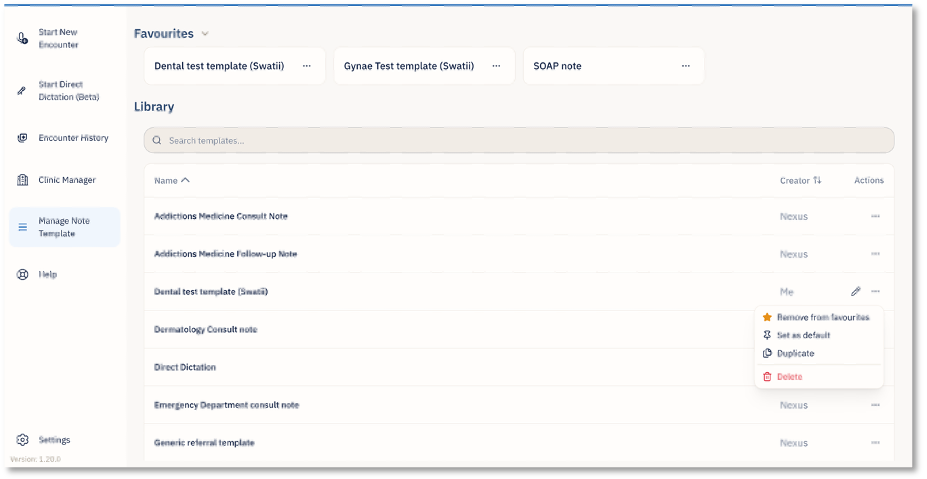
A menu will appear with the actions available for that template.
The following actions are available for both system-generated and user-created templates.
**Add to Favourites -** to mark a template as a favourite.
**Remove from Favourites –** to remove the template from the Favourites section. The template will still remain available in the Library.
**Set as Default -** to make a template the default template for your workflow.
**Duplicate –** to create a copy of an existing template.This is useful when a user wants to use an existing template as a starting point and make changes without modifying the original template.
**Actions for User-Created Templates**
User-created templates include additional options because they are owned and managed by the user.
**Edit -** For templates created by the user, an **edit pencil icon** appears next to the three-dot menu. You can click the pencil icon to edit the template.
This option is not available for system-generated templates. System-generated templates cannot be edited by the user.
**Delete -** User-created templates also include a **Delete** option in the action menu.
Selecting **Delete** removes the user-created template from the template list. Users should only delete a template when they no longer need it.
- [Getting started](https://info.wellstar.health/knowledge-base/getting-started?hsLang=en-ca)
- [Settings](https://info.wellstar.health/knowledge-base/settings?hsLang=en-ca)
- [How To](https://info.wellstar.health/knowledge-base/how-to?hsLang=en-ca)
- [Troubleshooting](https://info.wellstar.health/knowledge-base/troubleshooting?hsLang=en-ca)
- [Home](https://nexusai.wellstar.health/)
- [Support](https://nexusai.wellstar.health/support/)
- [Resources](https://wellstar.health/resources/)
[](https://nexusai.wellstar.health)
[mailto:help@wellstar.health](mailto:help@wellstar.health)
Copyright © 2026, WELLSTAR Technologies