---
title: Starting a New Encounter in Nexus AI™ Scribe
description: A description of the new interface for starting a new encounter in Nexus AI Scribe
---
[Skip to content](https://info.wellstar.health/knowledge-base/starting-a-new-encounter-in-nexus-ai-scribe#main-content)
English - Canada
Show submenu for translations
[](https://nexusai.wellstar.health/)
- [Home](https://nexusai.wellstar.health/)
- [Support](https://nexusai.wellstar.health/support/)
- [Resources](https://wellstar.health/resources/)
Open main navigation
Close main navigation
- [Home](https://nexusai.wellstar.health/)
- [Support](https://nexusai.wellstar.health/support/)
- [Resources](https://wellstar.health/resources/)
- English - Canada
Show submenu for translations
- [Book a 1:1 Support Session](https://calendly.com/nexus-ai-support-team)
[Book a 1:1 Support Session](https://calendly.com/nexus-ai-support-team)
How can we help you?
- There are no suggestions because the search field is empty.
1. [Nexus AI™ Knowledge Base](https://info.wellstar.health/knowledge-base?hsLang=en-ca)
2. [How To](https://info.wellstar.health/knowledge-base/how-to?hsLang=en-ca)
# Starting a New Encounter in Nexus AI™ Scribe
## Walking through the steps to starting a new encounter
Use the ‘Start New Encounter’ option on the left navigation menu when beginning a new consultation or patient visit that needs to be captured by Nexus AI™ Scribe.
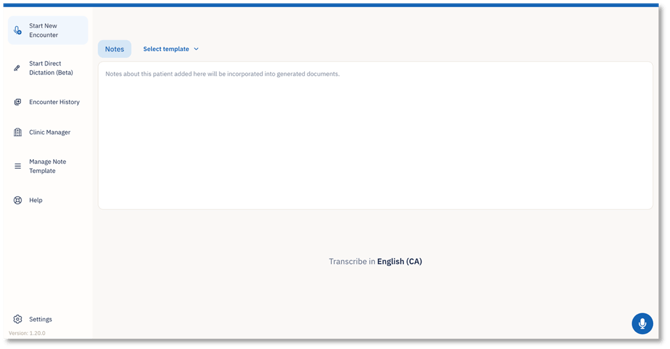
This screen includes a **Notes** tab.
This allows you to enter any relevant patient information before or during the encounter. Any notes added here will be incorporated into the generated documents.
Examples of information that can be added here include:
- Patient context shared before the visit.
- Specific concerns to pay attention to.
- Relevant history or background details.
- Instructions that may help guide the final note.
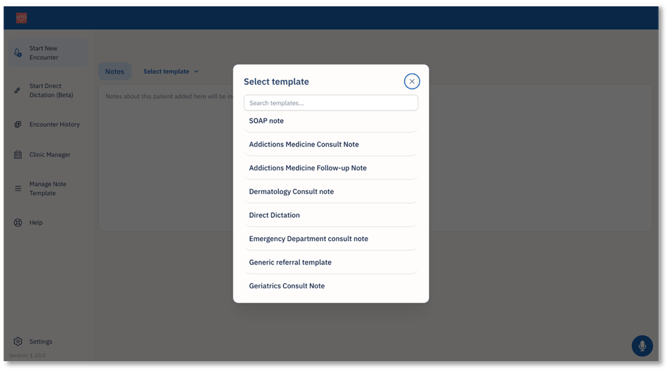
Next to the Note tab is the **‘Select template’** dropdown.
This allows you to select the appropriate documentation format for the encounter.
You should choose the template that best matches the type of visit or documentation required before starting the consult.
At the bottom of the screen, the transcription language is displayed.
In the screenshot shown, the language is set to **English (CA)**.
Confirm that the correct transcription language is selected before starting the encounter to help ensure accurate transcription and note generation.
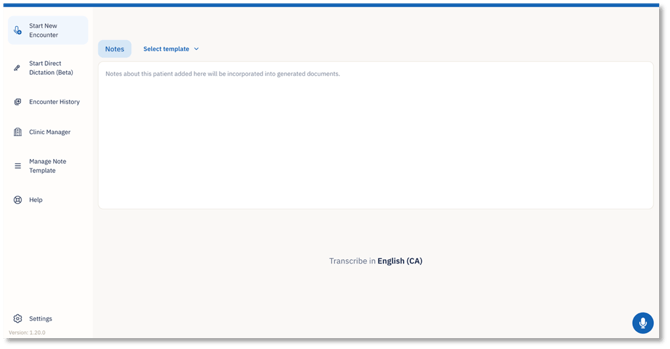
The microphone button is in the bottom-right corner of the screen.
Use this button to begin capturing the patient-provider conversation for the encounter.
Once the conversation is captured, Nexus AI™ Scribe uses the encounter audio and selected template to help generate the clinical note.
- [Getting started](https://info.wellstar.health/knowledge-base/getting-started?hsLang=en-ca)
- [Settings](https://info.wellstar.health/knowledge-base/settings?hsLang=en-ca)
- [How To](https://info.wellstar.health/knowledge-base/how-to?hsLang=en-ca)
- [Troubleshooting](https://info.wellstar.health/knowledge-base/troubleshooting?hsLang=en-ca)
- [Home](https://nexusai.wellstar.health/)
- [Support](https://nexusai.wellstar.health/support/)
- [Resources](https://wellstar.health/resources/)
[](https://nexusai.wellstar.health)
[mailto:help@wellstar.health](mailto:help@wellstar.health)
Copyright © 2026, WELLSTAR Technologies